In today’s digital age, USB sticks have become a convenient and versatile tool for storing and transferring files. One of the most popular uses for a USB stick is to play videos on your TV. Whether you want to watch movies, TV shows, or home videos, using a USB stick is a simple and effective way to enjoy your media on the big screen. In this guide, we will walk you through the steps of using a USB stick to play videos on your TV and offer tips to ensure a smooth experience.
Before diving into the process, it’s essential to ensure you have the right equipment. Here’s what you’ll need:
The first step is to load the video files onto your USB stick. Plug the USB stick into your computer, and drag-and-drop the desired video files into the USB stick’s folder. For best performance, keep your video files organized in a clear folder structure, especially if you have multiple videos. Once the files are transferred, safely eject the USB stick from your computer.
Locate the USB port on your TV, which is typically located on the side or back panel. Insert the USB stick into the port. Depending on your TV model, it may take a few moments to recognize the device.
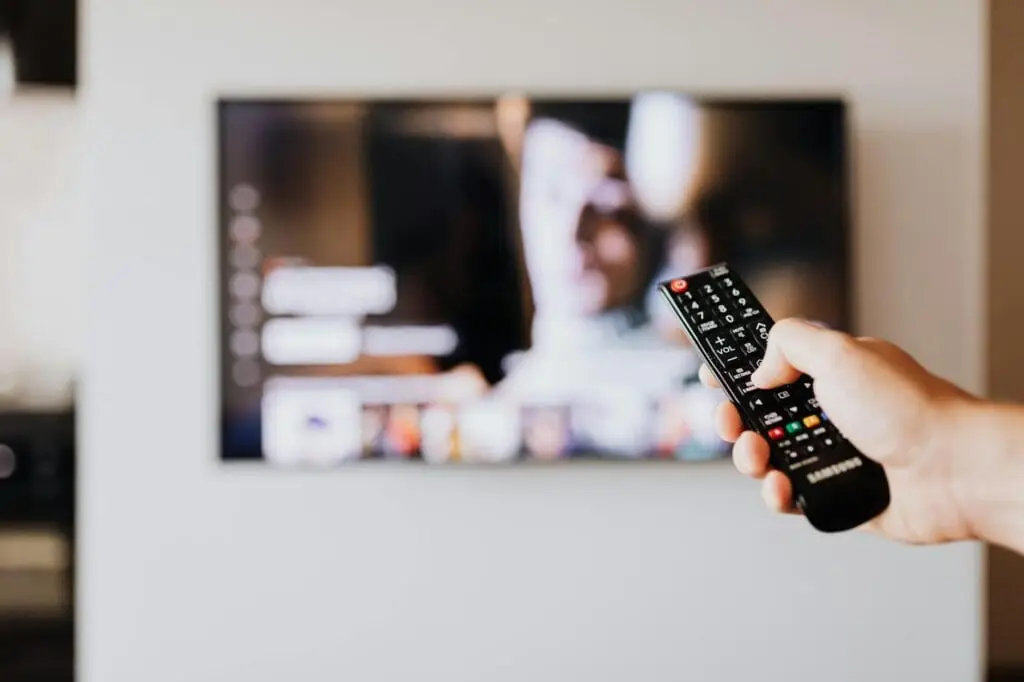
Using your TV remote, navigate to the input/source menu. This can usually be accessed via the “Input” or “Source” button on the remote. From the list of available inputs, select the USB option. Your TV will display the contents of the USB stick.
Once your USB stick appears on the screen, use your remote to browse through the video files stored on it. Select the video you want to play by highlighting it and pressing “Enter” or the corresponding button on your remote.
After selecting the video, your TV should automatically begin playing it. If it doesn’t start, check for any on-screen prompts that may ask you to confirm the video format or settings.
While the video is playing, you can use your TV’s remote to control playback. This typically includes pause, play, fast forward, rewind, and volume control. Some TVs also allow you to adjust the aspect ratio or enable subtitles for certain video formats.
If you encounter issues while playing videos from your USB stick on your TV, here are a few troubleshooting tips:
Using a USB stick to play videos on your TV is an efficient and simple way to enjoy your favorite content without needing additional devices. Whether you’re watching a movie, a personal video, or a presentation, following these steps will help you seamlessly connect your USB stick to your TV. Just make sure your files are compatible, and you’re all set for a smooth viewing experience. Happy watching!