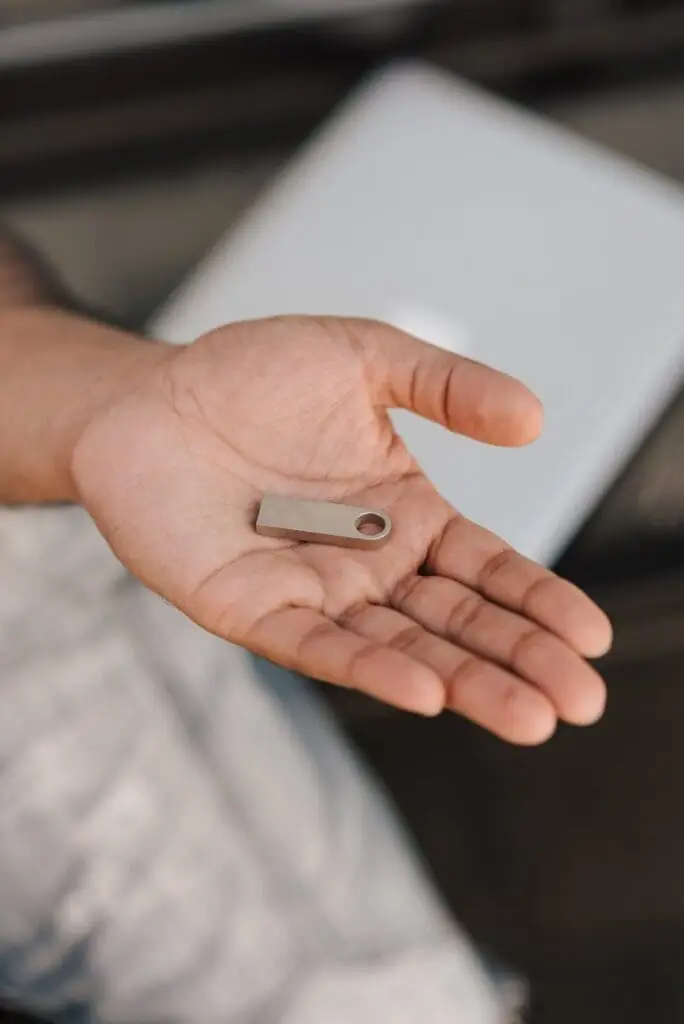
One important consideration when using a USB stick to play videos on your TV is ensuring that the TV’s USB port functions as a display source and not just a power source. Many TVs come with USB ports that are designed solely for powering external devices like streaming sticks, keyboards, or USB-powered speakers, but do not support data transfer for displaying media content.
Here’s how to ensure you are using the correct USB port for media playback:
The first step is to check your TV’s user manual or online specifications. Some TVs have multiple USB ports, and only one or two might support video or file playback. Typically, USB ports labeled as “USB 2.0” or “USB (Media)” are intended for data transfer and media playback. Ports labeled “USB (Power)” or “USB (Charging)” are generally designed only to provide power to external devices.
When you insert your USB stick into the TV, pay attention to any on-screen prompts. If the USB port is dedicated to powering devices, you may see a message indicating that the TV recognizes the stick but can only provide power. In contrast, if the port supports media playback, the TV will automatically display the contents of the USB drive or prompt you to select a file.
If you’re unsure, try plugging the USB stick into different available USB ports on your TV. If the TV recognizes the media files on the stick and displays them, then the port is functioning as a display source. If no files appear or you’re only prompted to charge a device, try using a different USB port.
If your TV doesn’t have a USB port capable of playing videos, you can use a media player or streaming device that connects via HDMI. Devices like Google Chromecast, Amazon Fire Stick, or Roku can read content from USB sticks (via a USB-to-HDMI adapter) and allow you to play videos on your TV.
By ensuring you are using the correct USB port, you can avoid frustration and enjoy a smooth, hassle-free video-watching experience on your TV.